
Connecting Facebook and Instagram
How to connect your Facebook pages and Instagram accounts to Octocom so the bot can handle DMs, comments, and mentions.
For WhatsApp numbers, use the separate Connecting WhatsApp guide. WhatsApp has its own phone verification, account connection, and reply settings.
Octocom connects to Facebook and Instagram through Meta's business integration flow, for brands running customer support on Facebook and Instagram. Once connected, a page or Instagram account becomes an Octocom channel — DMs, comments, post mentions, and comment mentions can all be routed through the bot or your human agents, with per-asset settings for what to do with each kind of engagement.
This page walks through the full connection process: what permissions the person connecting needs, where to find the settings, what to expect inside the Meta login dialog, and how to manage each asset after it's connected.
Before you start
Connecting a Facebook page or Instagram account to Octocom is done through a single Meta user. That user must be:
- An admin of the Facebook page you want to connect, and
- An admin of the Meta business (business portfolio) that owns the page.
Both conditions are required. Being an admin of the page but only having a lower role in the owning business — or vice versa — is enough for Meta to let you through the login flow but not enough for Octocom to actually attach the asset. If a page shows up in the flow but can't be connected, this is almost always why.
Instagram accounts follow the Facebook page's permissions. Personal Instagram accounts are not supported at all — only professional/business accounts linked to a Facebook page can be connected.
Finding the Social Media settings
In the Octocom dashboard, open Settings, expand Channels in the sidebar, and click Social Media.
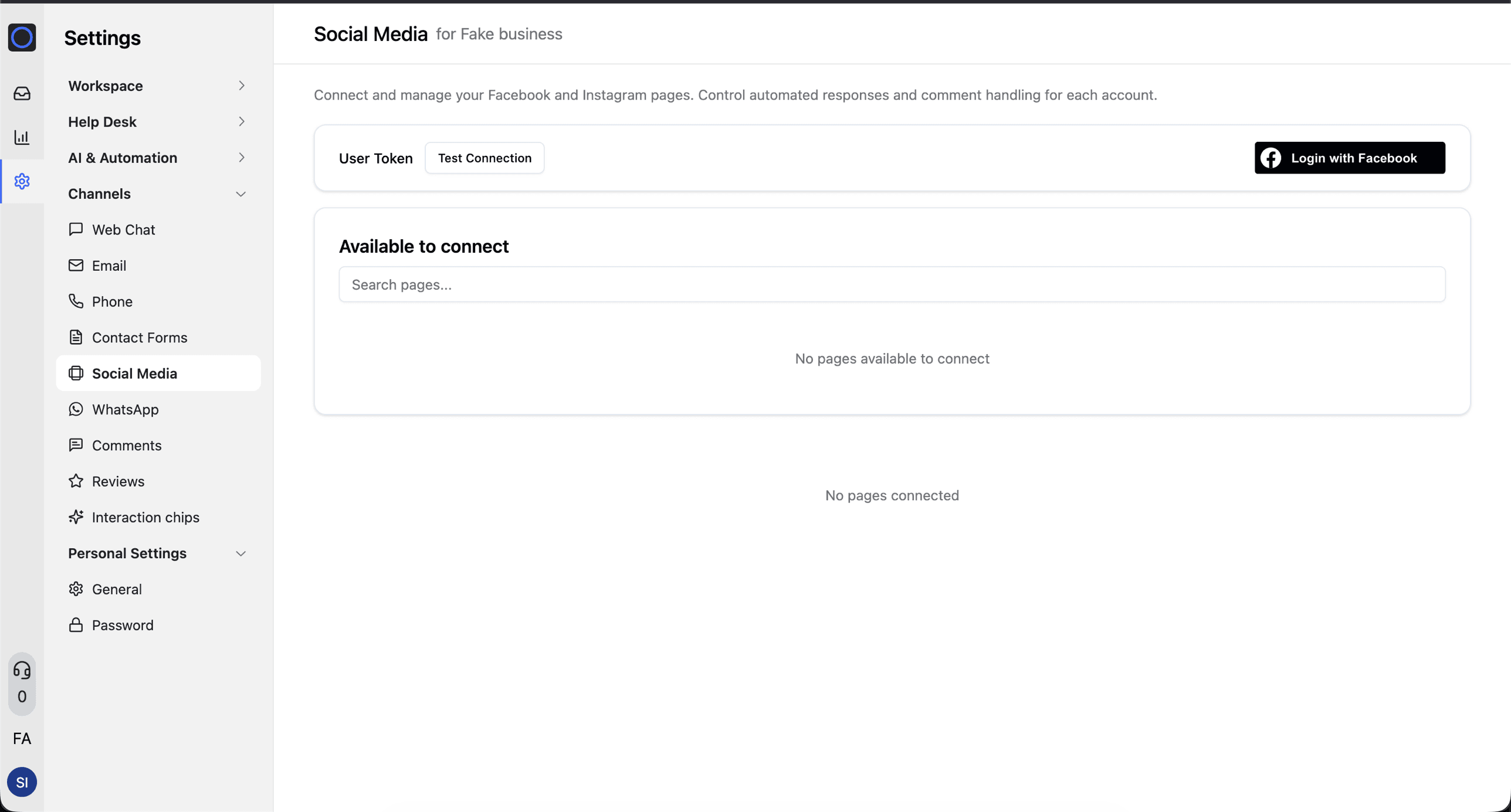
Logging in with Facebook
Clicking Log in with Facebook opens Meta's integration dialog. The dialog walks you through three selection steps — one for Facebook pages, one for business portfolios, and one for Instagram accounts — followed by a review of the permissions being granted.
For each step, we recommend selecting "Opt in to all current and future":
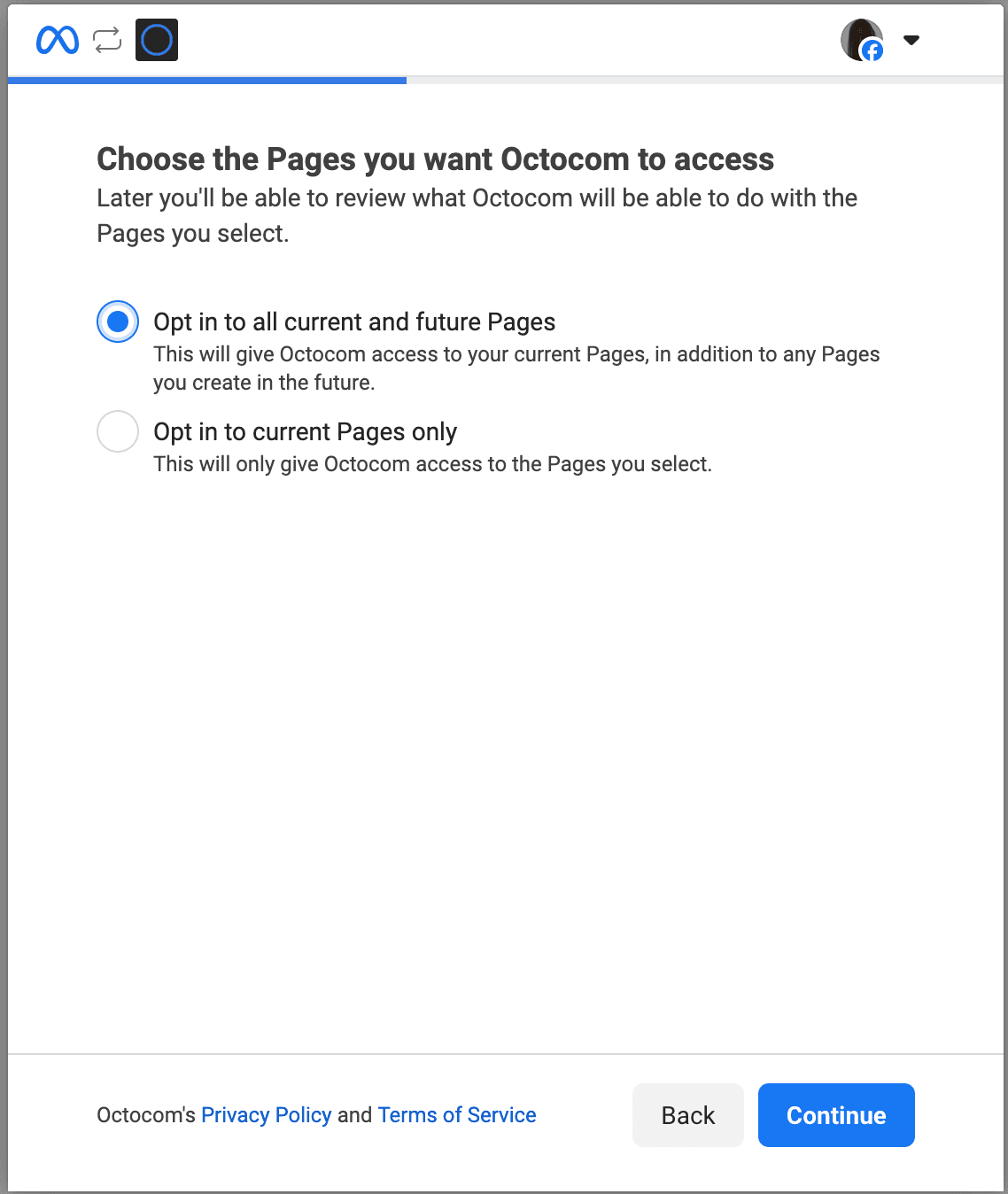
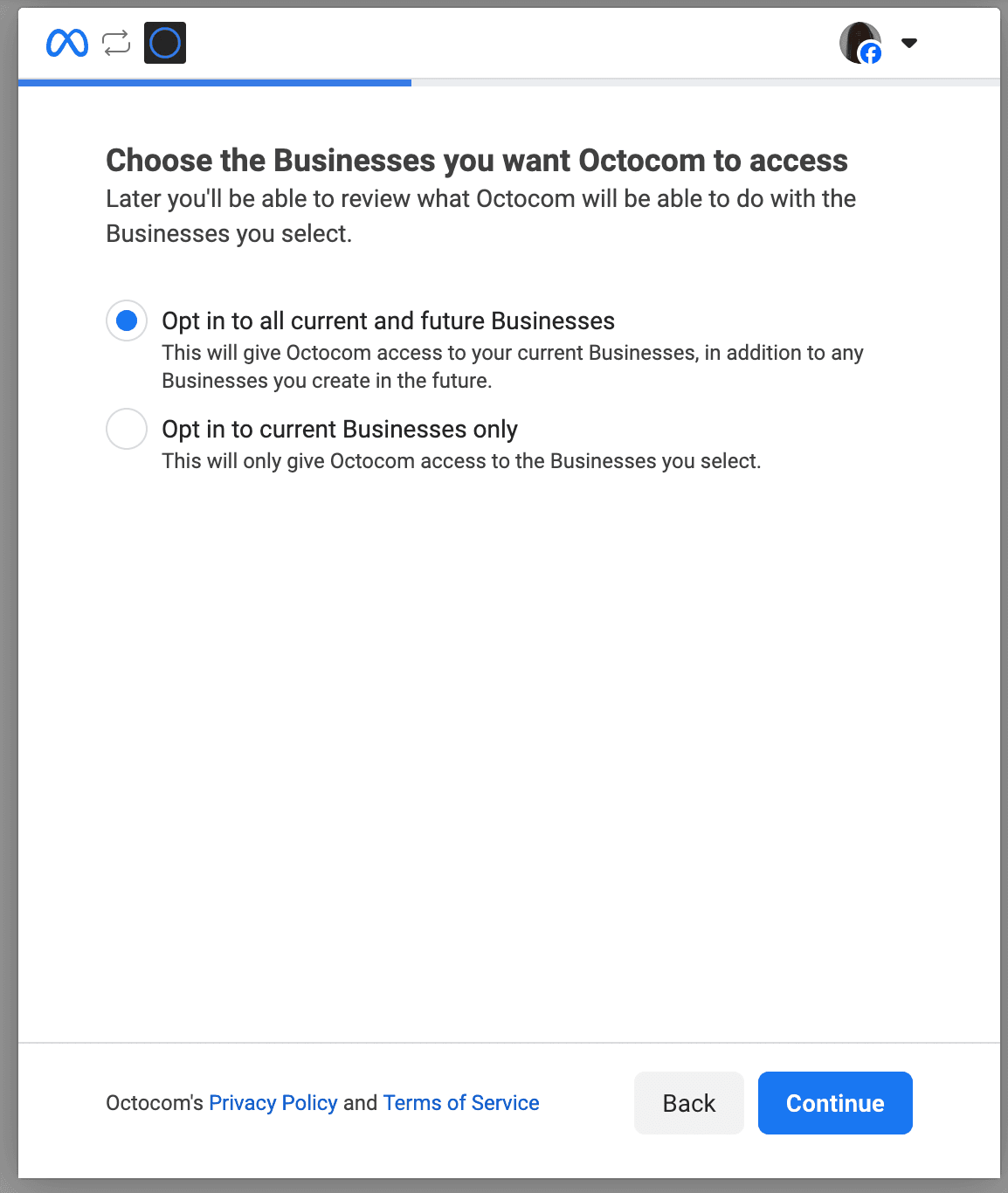
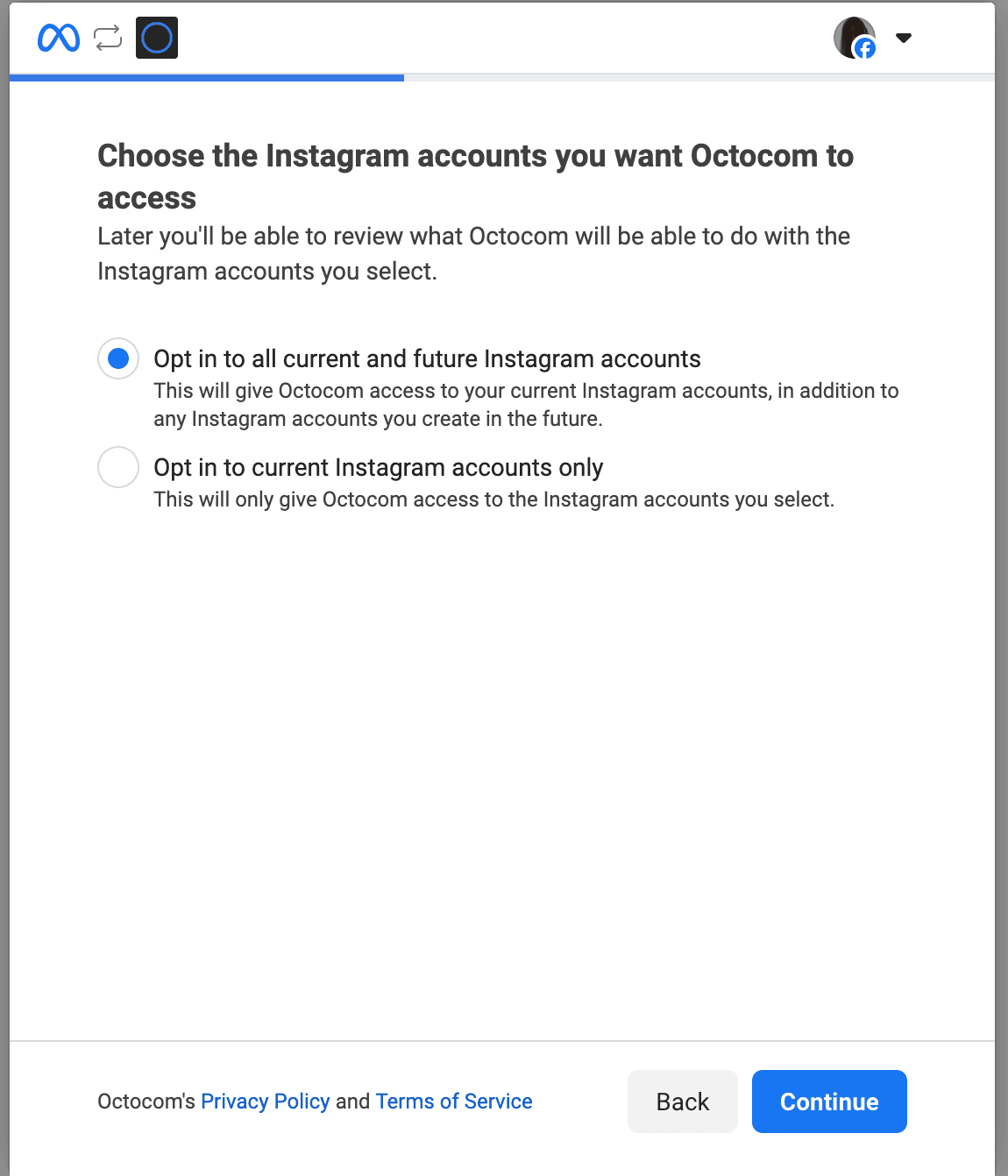
The final step shows the permissions Octocom is being granted on the selected assets — reading content, managing comments, reading DMs, and so on:
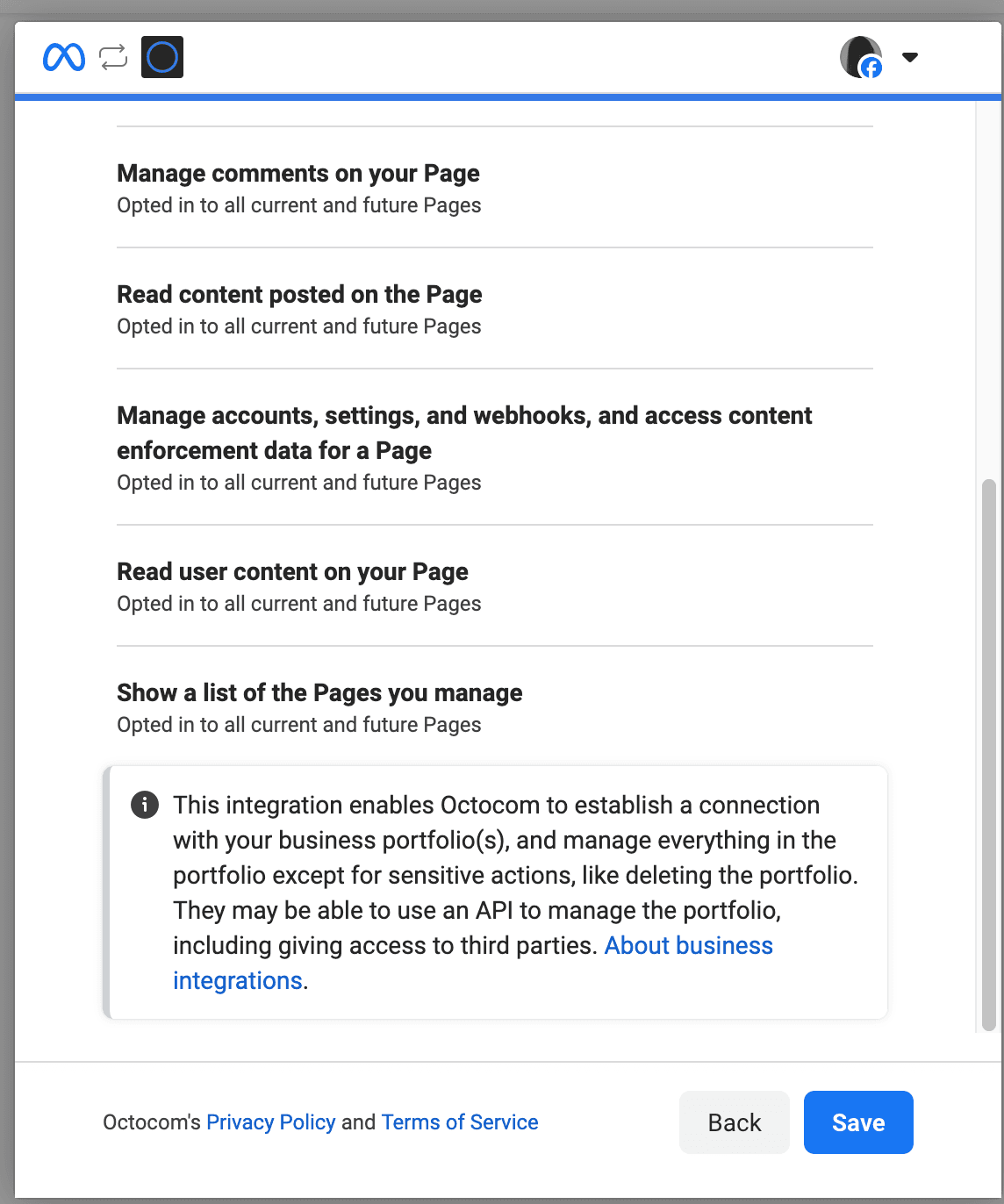
Granting access is not the same as connecting. Opting in here only tells Meta that Octocom is allowed to see and act on these pages, Instagram accounts, and businesses. Nothing is wired up to any Octocom business yet, and the bot won't start responding or posting on any of them. The actual connection happens in the next step, inside the Octocom dashboard, where you explicitly choose which assets to attach.
Selecting "current only" is fine too if you have a specific reason to scope access down — but keep in mind that any page or Instagram account created later won't be visible to Octocom until you run the login flow again.
Connecting pages and Instagram accounts
When the Meta flow finishes, you're redirected back to the Social Media settings page. The pages and Instagram accounts you just granted access to now show up under Available to connect:
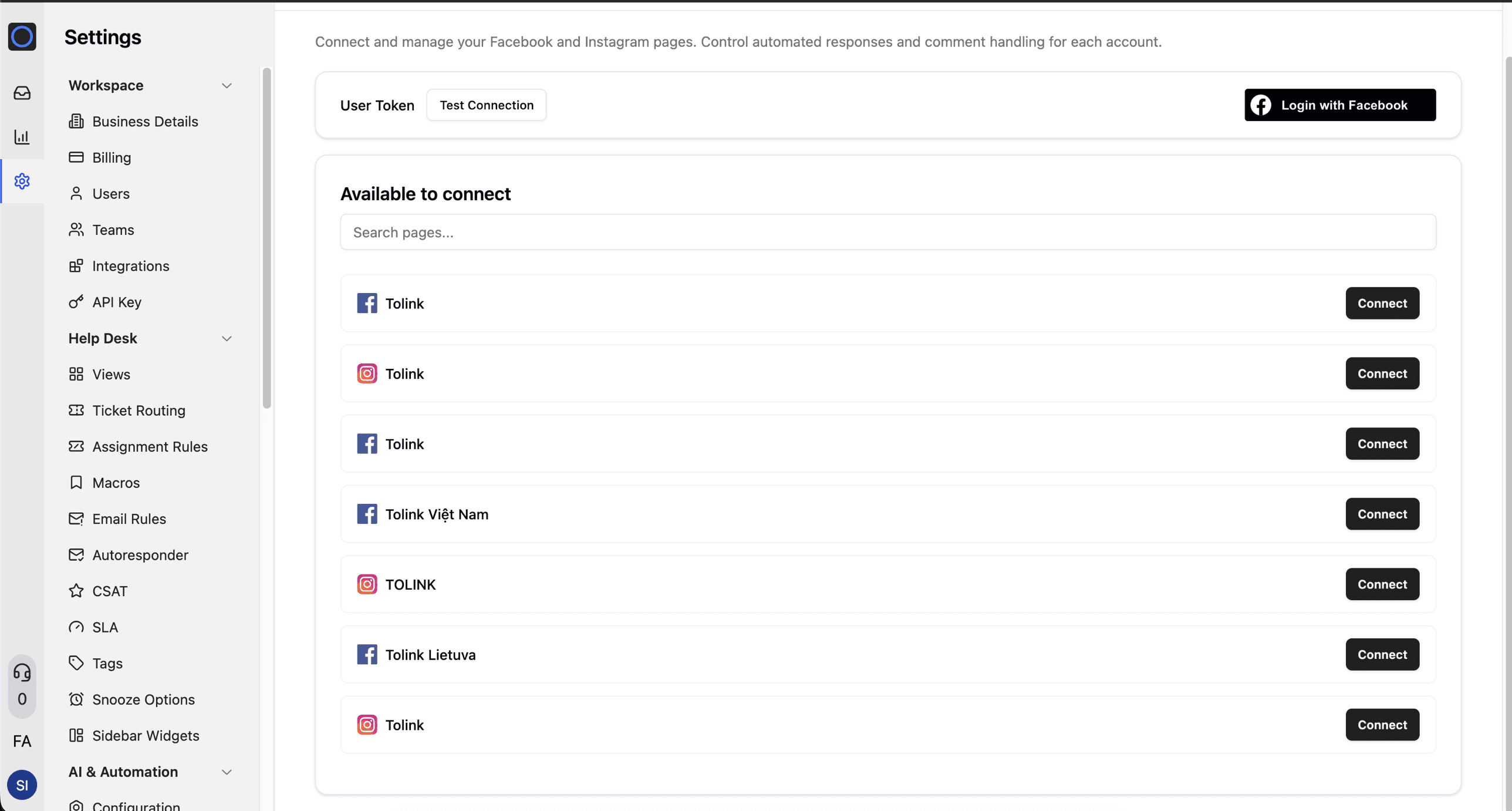
Each row has a Connect button. Clicking it attaches that asset to the currently selected Octocom business.
If your Octocom workspace has more than one brand, check the business selector in the top-left corner before you click Connect. The Facebook login grants access at the workspace level, so the same list of available assets appears no matter which business you're viewing — it's the Connect click that binds an asset to a specific business. Connecting a page to the wrong business is the most common mistake during onboarding.
A few things worth knowing about how the list behaves:
- Instagram accounts require their parent Facebook page. Personal Instagram accounts aren't supported, and a professional Instagram account can only be connected alongside the page it's linked to. If you click Connect on an Instagram account before connecting its parent page, Octocom will connect both automatically.
- If something fails during connection, the Common Issues page covers the most frequent causes and how to resolve them.
Managing connected assets
Once an asset is connected, it moves out of the "Available to connect" list and into the list of connected pages on the same settings page:
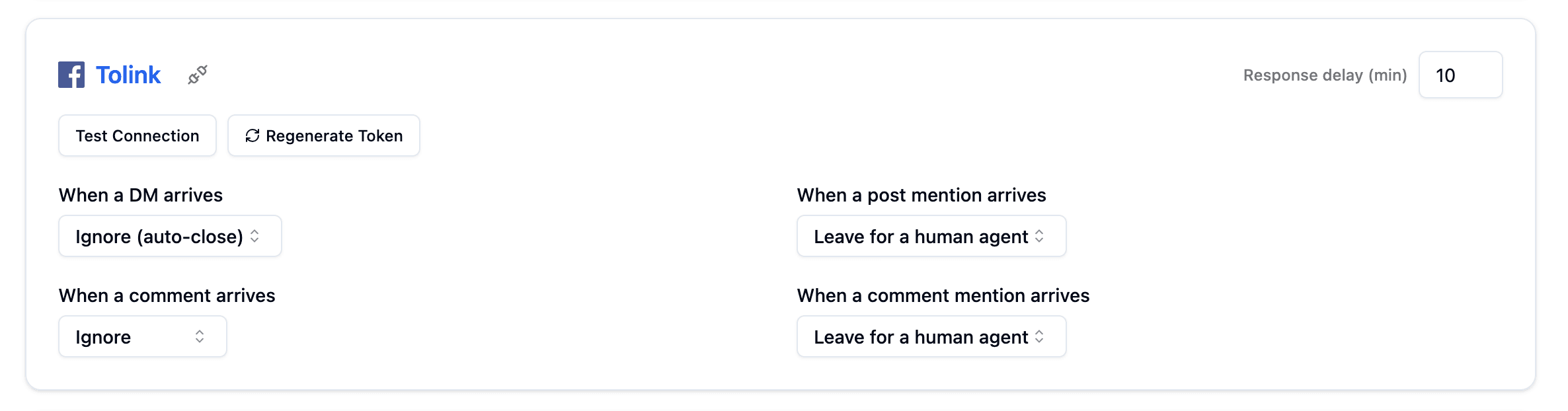
Each connected asset has a few controls.
Response delay (min)
The number of minutes Octocom waits after an engagement arrives — a DM, comment, post mention, or comment mention — before the bot generates its response. The minimum is 1 minute.
This delay exists because people often write a single thought across several short messages. Responding instantly to the first one would mean answering before the user has finished explaining themselves. A short delay gives the bot the full picture before it replies.
Test Connection
Runs a health check against the asset and reports whether the connection is live and receiving engagements correctly. Use this first whenever something looks off — it's the fastest way to tell the difference between a broken integration and a configuration problem somewhere else.
Regenerate Token
Issues fresh credentials for the asset. Tokens can go stale if permissions change on Meta's side, the owning user re-authenticates, or the original grant expires. Regenerating the token resolves most "the connection used to work and now it doesn't" situations without needing to re-run the full Facebook login.
If regenerating the page token doesn't fix the issue, the underlying user token is usually the problem — re-run Log in with Facebook and make sure to select "Opt in to all current and future" again. The Common Issues page covers this in more detail.
Engagement handling
The remaining dropdowns — When a DM arrives, When a comment arrives, When a post mention arrives, When a comment mention arrives — control what Octocom does with each kind of engagement on this asset. Options include ignoring the engagement, leaving it for a human agent, or letting the bot handle it. These settings are per-asset, so you can run fully automated responses on one page and human-only triage on another.
On an Instagram account, the mention dropdown is called When a post or story mention arrives, and there is one more: When a story reply arrives.
Instagram stories
Two kinds of story activity reach you as Instagram DMs, and neither follows When a DM arrives:
- Story replies. A customer replies to one of your stories. When a story reply arrives decides who answers. With Leave for a human agent (the default), the conversation opens already handed off. With AI replies automatically, the bot answers, even if DMs are set differently. The bot sees the story when it is a photo (it cannot view videos), plus any link sticker on it, and the message starts with a short note saying it is a story reply, which your agents see in the inbox too. A reaction without text, such as a single emoji, is skipped either way.
- Story mentions. A customer tags your account in their own story. These follow When a post or story mention arrives. The bot only learns that a mention arrived; it cannot see the customer's story. In the inbox the message reads "The customer sent an unsupported file type (story_mention)".
Disconnecting
The disconnect icon () next to the page name removes the asset from the current Octocom business. Use it if a page was connected to the wrong business, if you're decommissioning a brand, or if you simply want to stop routing engagements from that asset through Octocom. Disconnecting doesn't revoke Meta permissions — it just unbinds the asset from this business, so it'll reappear under "Available to connect" and can be reattached at any time.